 KOOROW
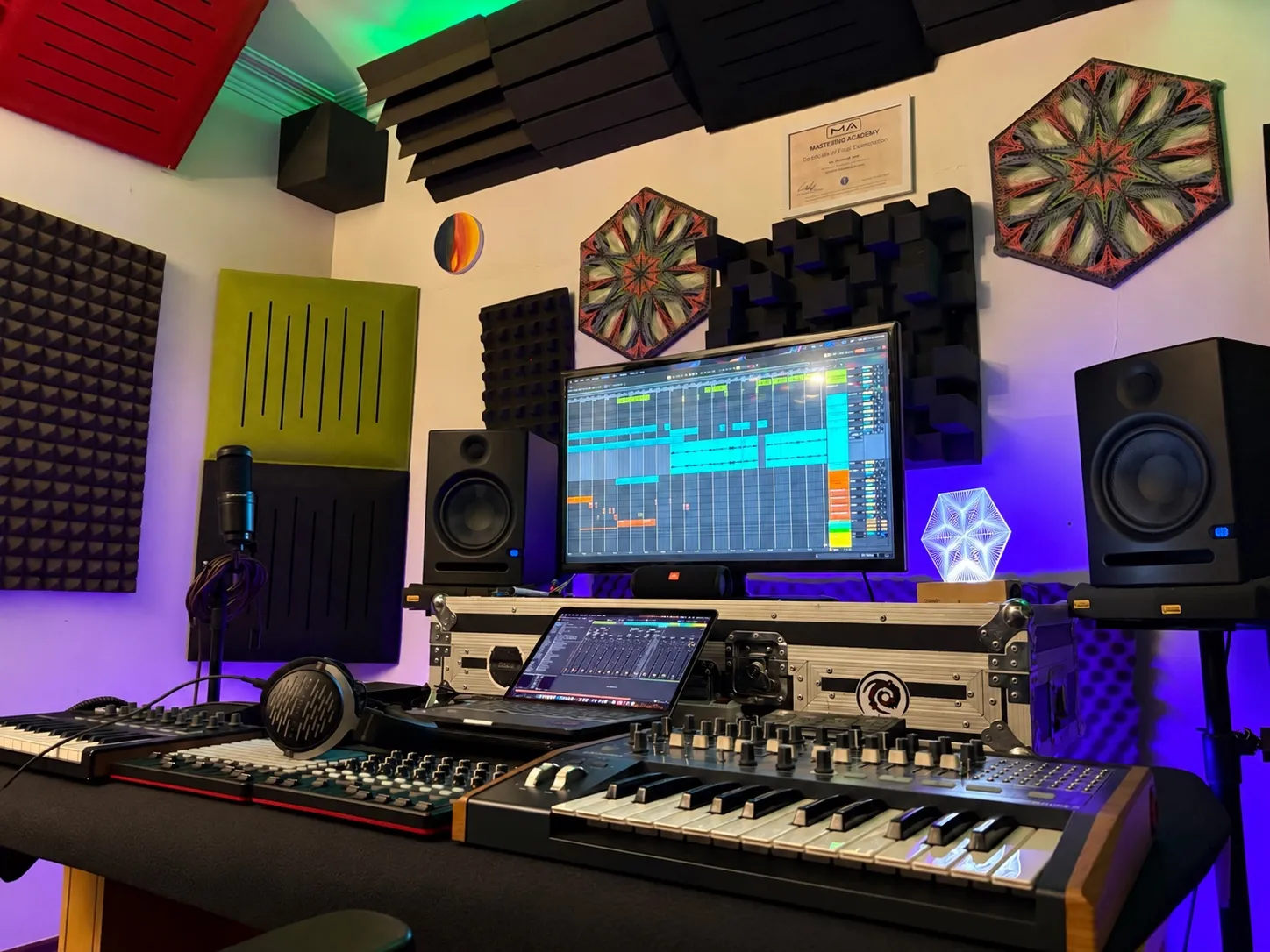
A raw violin recording can become a dark, strange string pad that sits behind your whole mix. In this lesson KOOROW takes the violin he recorded in his studio and turns it into an ambient texture. He cleans it with EQ, controls it with compression, then adds a flanger, Valhalla VintageVerb’s Cathedral mode, a granular pitch shifter moved by Ableton’s LFO, and a touch of rhythm with ShaperBox.
The video is in Persian. This article walks through every step in English.
Why record a real instrument?
Listen to the raw recording and you hear the instrument’s own resonance ringing in the sound. That is why recording a real instrument is more exciting and more real than playing the same part with a VST.
Step 1: Clean the recording with Pro-Q
- Cut away the junk at the extremes of the spectrum.
- One area rings with a resonance. KOOROW puts a dynamic band on it and switches on the mode that catches resonances, which FabFilter calls spectral. It reacts only when the resonance appears.
- Another resonance gets a small cut.
- Add a little brightness.
Step 2: Tame the dynamics
A played violin moves a lot in level. A compressor brings those movements under control:
- Lower the threshold.
- Leave the attack mostly where it is.
- Make the release longer. The goal is not to catch peaks but to move the sound as a whole.
The gain reduction meter tells you a lot. On quiet parts there is about 1 dB of reduction, and on the loud parts about 5 dB. The loud and quiet parts move closer together without the sound being over-compressed.
Step 3: A slow flanger
For a stranger character, KOOROW adds Ableton’s Phaser-Flanger in flanger mode before the reverb: feedback around 30, a slow rate of 4 bars, and a 10 ms delay time. Then the reverb goes on top.
Step 4: Valhalla VintageVerb, Cathedral mode
Valhalla VintageVerb is one of the best-sounding reverbs KOOROW knows. For this pad:
| Setting | In the video |
|---|---|
| Mode | Cathedral |
| Decay | Long, turned well up |
| High shelf | Raised |
| Low cut | Up to 400 Hz |
After the reverb, another EQ removes any dirty bass that is left.
Step 5: Granular pitch before the reverb
Now the granular pitch shifter from the previous video, u-he’s Uhbik, goes in before the reverb:
- Grain size to maximum, or a little less.
- Dry/wet at 50.
- Semitone down, scale up.
- Offset negative.
Listen without the reverb too. The grains alone already make the violin sound completely different.
Step 6: Move it with Ableton’s LFO
Instead of recording automation, KOOROW uses Ableton’s LFO audio effect to move the two pitch parameters of the granular plugin:
- Map the LFO to the parameters. If the mapping does not catch, open the plugin, move the parameter, and use Configure so it appears.
- Set the shape to Random. He does not want a regular up-and-down movement.
- Start the rate at 1/8, synced, then slow it down. It was too fast.
- Raise the smoothing so the changes glide instead of jumping.
- Now that the LFO is moving it, lower the granular plugin’s dry/wet a little.
Step 7: Optional rhythm
You can leave the pad flowing, or give it rhythm. ShaperBox, LFO Tool or even Auto Pan can do it. KOOROW uses ShaperBox after the reverb and draws a rhythm. Fully gating the pad does not sound good, though. The goal is an accent, not cutting the sound off, so he lowers ShaperBox’s mix until the rhythm only shapes the pad.
The full chain at a glance
- FabFilter Pro-Q: clean-up, dynamic band on the resonance, a little brightness.
- Compressor: lower threshold, longer release, about 1–5 dB of gain reduction.
- Phaser-Flanger in flanger mode: slow, 4 bars, 10 ms.
- u-he granular pitch shifter, moved by Ableton’s LFO.
- Valhalla VintageVerb in Cathedral mode, low cut at 400 Hz.
- EQ to remove leftover bass, then optional ShaperBox rhythm.
The idea behind it
Record source sounds with a microphone, then shape them with audio effects into something you can use in your track. KOOROW keeps repeating one tip: don’t underestimate the u-he granular pitch plugin. There is a lot you can do with it.
Turn your recordings into signature sounds
Koorow Premium brings weekly sound design lessons, presets, samples and feedback on your own tracks. Private lessons are also available in English.